


How to Listen to Apple Music and Spotify Through Pine Player — Direct Stream Capture
Streaming music, played through your own audio engine
We spend far more time listening to streaming services than we used to, and the audio quality that Apple Music, Spotify, and YouTube deliver has improved a great deal. What has not changed is how little say we have over the path that sound takes on its way to our DAC and speakers. You can assemble excellent gear and still have no choice but to accept whatever the app sends out.
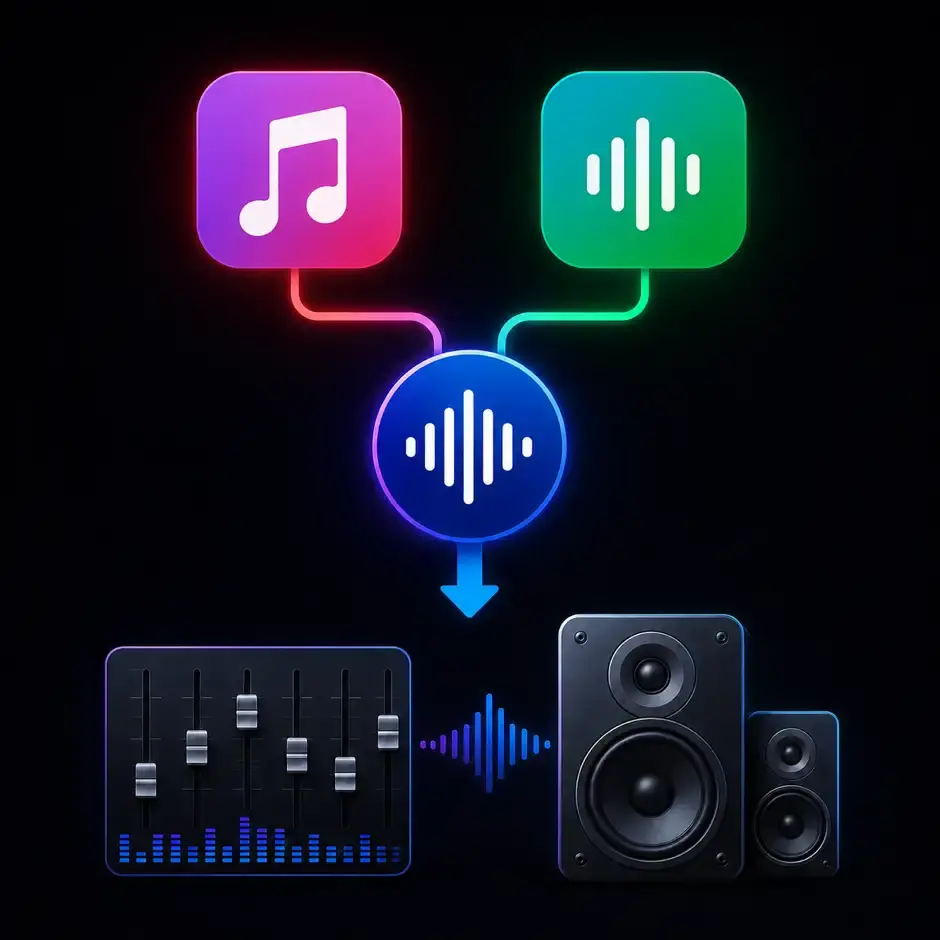
Direct Stream Capture solves exactly that. It takes the audio another app sends to the system, captures it as PCM, runs it once more through Pine Player's audio engine, and sends it to the output device you chose. The DSP EQ, upsampling (OSF · CSF), and Bit Perfect output you already use for file playback now apply to streaming music as well.
The feature relies on the Core Audio Process Tap in macOS, so it requires macOS 14.4 or later. Capture itself is available in the free Pine Player, while shaping the captured sound with EQ and upsampling is provided by Pine Player Pro.
1. First, set up your audio output device
Direct Stream Capture works like this: it takes the sound flowing to the system's default output, then sends it back out through the output device set in the app. That makes the output device settings the place to start.
① Make sure the audio you want to capture goes to the system default output
Check the default output device in macOS System Settings > Sound. Direct Stream Capture captures the audio flowing to that default output device. If Apple Music or Spotify is configured to send audio straight to a different device from inside the app, nothing will be captured.
② Choose Pine Player's output device
Open Pine Player's Preferences, go to the Audio Devices tab, and set Output to the device you actually listen through — a USB DAC, an audio interface, the built-in speakers, and so on. This is where the captured audio finally comes out.
③ Using the same device as the system default is perfectly fine
When capture turns on, the original system output is muted automatically. This keeps the unprocessed sound from overlapping with the processed one and prevents a feedback loop. The system default output and Pine Player's output device can therefore be the same DAC without any trouble, and what you hear is always the single stream that went through Pine Player.
④ Know the sample rates your device supports
If you plan to use upsampled output, it helps to know how high your device will go. The 'Open System Audio MIDI Setup Window' button in Preferences opens the macOS Audio MIDI Setup directly. Note that Direct Stream Capture caps its output at 192kHz for device compatibility.
One more thing worth knowing: in capture mode, the volume slider in the player window controls the output device's hardware volume rather than the app's internal volume. That way the level of the original audio is never touched while you set a comfortable listening level.
2. Turning on Direct Stream Capture
Once the setup above is done, using it is simple.
1) Stop playback first if a file is playing. Capture cannot be turned on or off during file playback.
2) Press the capture button in the player window. The button icon brightens when it is on. The 'Turn On / Turn Off Direct Stream Capture' items in the main menu and the status bar menu do the same thing.
3) The first time you turn it on, macOS asks for permission to capture system audio. Please allow it. Pine Player uses this permission only to reprocess the system output through its own audio engine.
4) Now play music in Apple Music, Spotify, YouTube, or any other app. Pine Player's level meters start moving, the artist label shows the name of the app being captured, and the format display shows the PCM sample rate of the captured source.
5) To turn it off, press the capture button again. The output device's sample rate and volume, changed for the capture session, return to their original state.
While capture is on you cannot play files in Pine Player, because the app's entire audio path is assigned to the captured stream.
3. Shaping streaming music with the DSP EQ in Pro
This is where Pine Player Pro takes over. Turn on DSP • Equalizer Mode in the Audio Devices tab of Preferences and the EQ engine used for file playback is applied to the captured audio as well. Music from a streaming app can finally be tuned to your headphones and your room.
Everything behaves exactly as it does with file playback. Parametric EQ bands, bass and treble shelving filters, low-pass and high-pass filters, and pre-gain: the values you set in the EQ window and the presets you saved are applied in real time. Move a slider and the streaming music playing right now changes with it.
EQ mode performs its processing at an oversampled rate. The output rate can be a fixed 44.1kHz, 48kHz, or 96kHz, or ×2 · ×4 of the source rate. The 44.1kHz family is capped at 176.4kHz and the 48kHz family at 192kHz, so the original clock family is never crossed. Resampling uses Pine Player's high-quality resampling engine.
When you push a band up sharply, it is safer to pull pre-gain down a little. Streaming material is often mastered at a fairly high level already, so added boost can clip.
4. OSF · CSF upsampling and Bit Perfect output
If you would rather raise output quality without touching the EQ, use one of the modes below.
OSF (Over Sampling Filter) — the default state, with DSP EQ, Bit Perfect, and CSF all off. No EQ processing is applied to the captured PCM; it is only upsampled to the output rate you set. The resampler is Pine Player's high-quality resampling engine, and the output rate can be the source rate as is (×1), ×2, or a fixed rate. It suits you well when you want to ease the burden on your DAC's digital filter without changing the character of the streaming source.
CSF (Custom Sampling Filter) — a mode for designing the resampling filter yourself. Filter length, cutoff, phase shift, computation precision, filter type, and dither are all adjustable. Filter length and cutoff change how much pre- and post-ringing you get, so it is worth adjusting until you find the point that matches your taste. Resampling filters and ringing are covered in detail in our post 'What Is the Ringing Effect in Resampling Filters?'.
Bit Perfect — sends the captured source out at its own sample rate with no processing at all, and the output device's clock switches to match the source rate. Use it when you want the signal from the streaming app delivered to your DAC as untouched as possible.
Whichever mode you use, the output device's hardware sample rate switches automatically to match the actual processing rate. Capture output is capped at 192kHz, however — a safeguard against devices that cannot accept 352.8kHz or 384kHz and would produce no sound at all.
Changing the EQ mode or output mode during capture rebuilds the audio engine, so the sound cuts out briefly. That is normal behavior, so there is no need to worry.
5. What to check when something is not working
No sound at all — check that the output device in Preferences is a device that is actually connected, and that the sound from the app you want to capture is going to the system default output. These two account for most cases.
Pressing the button does not turn it on — check that you are on macOS 14.4 or later and that file playback is stopped. The capture toggle does not work during playback.
I denied the permission request by mistake — allow Pine Player's audio capture permission again in Privacy & Security in macOS System Settings, then restart the app.
The volume slider moves the device volume — that is intended in capture mode. It controls the output device's hardware volume so that the level of the original stream is left untouched.
In closing
Direct Stream Capture removes the assumption that the sound coming from a streaming app is beyond your reach. The free Pine Player sends the system output back out through the app's output device; Pine Player Pro adds DSP EQ, OSF · CSF upsampling, and Bit Perfect output on top of that, so even streaming music can be shaped into the sound you want.
We hope you get everything your DAC and headphones are capable of, from streaming music too. Enjoy the listening.


Comments